

Home > Apps > Personalization > Overlay Digital Clock

| App Name | Overlay Digital Clock |
| Developer | fmroid |
| Category | Personalization |
| Size | 13.30M |
| Latest Version | 1.1.04 |
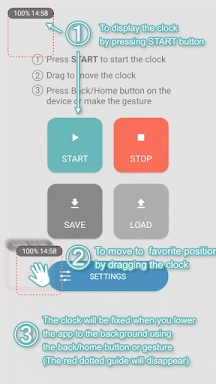
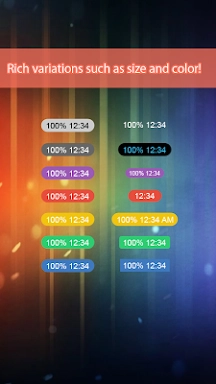
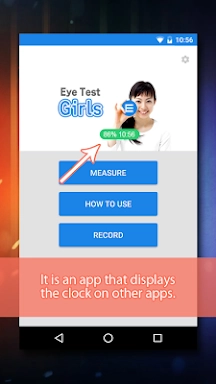


Overlay Digital Clock is a sleek, transparent desktop clock that helps you stay on time without cluttering your screen. It floats cleanly over other apps, making it easy to track time while you work. Combining functionality with subtle design, it provides key features like the current time, date, and adjustable transparency. Ideal for anyone who wants a visible but discreet clock at all times.
Key Features of Overlay Digital Clock
- Customizable Clock: Users can drag and reposition the clock to suit their layout and workflow preferences.
- Timer Function: Set timers that stop automatically, helping you manage tasks and stay productive.
- Battery Indicator: Monitor your device’s remaining battery level directly from the app to avoid unexpected power loss.
- Save Clock Position: Save your preferred clock position for quick access and a consistent user experience.
Helpful Tips for Users
- Try Different Clock Placements: Experiment with dragging the clock to various screen locations to find your ideal setup.
- Boost Productivity with Timers: Use the timer function to stay focused and complete tasks efficiently.
- Track Battery Life: Keep an eye on the battery indicator so you never run low while using the app.
How to Use This App
Download and Install: Get Overlay Digital Clock from your device’s app store or the official website.
Launch the App: Open the app—the clock will appear as an overlay on your screen.
Customize Settings: Go to the app settings to tweak the clock’s appearance, such as font size, color, and transparency.
Position the Clock: Drag the clock to any screen location where it’s easily visible.
Always on Top: Make sure the “Always on Top” option is enabled so the clock stays above other applications.
Check the Time: Easily view the time at a glance without leaving your current app or window.
Adjust Preferences: Revisit the settings anytime to update the clock’s look or position.
Troubleshooting: If the clock doesn’t show or acts unexpectedly, refer to the app’s help guide or contact support.
-
 Sonic Racing: CrossWorlds Characters and Tracks Revealed for Upcoming Closed Network Test
-
 Marvel Rivals Season 1 Release Date Revealed
-
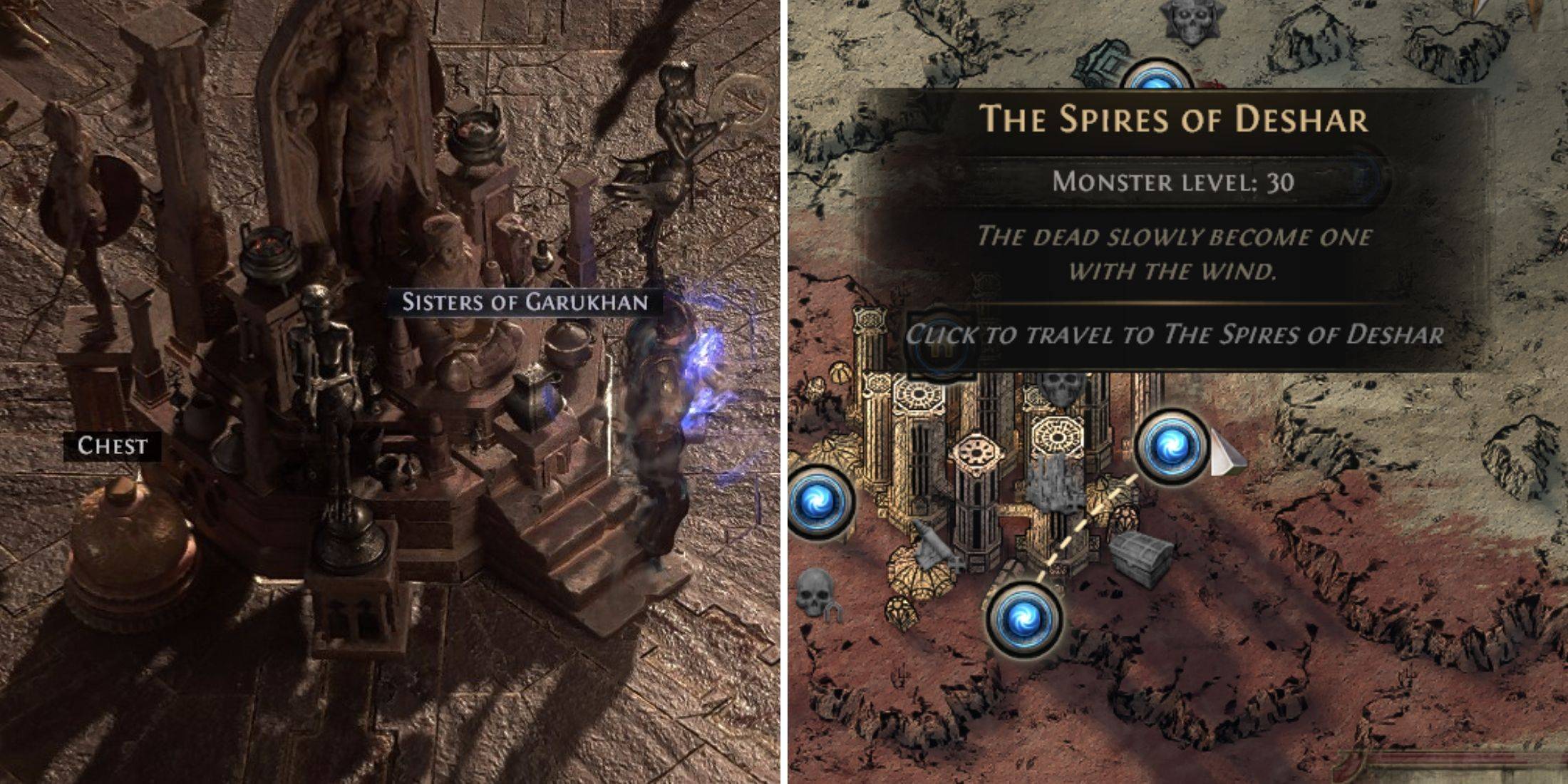 Announcing Path of Exile 2: Guide to Sisters of Garukhan Expansion
-
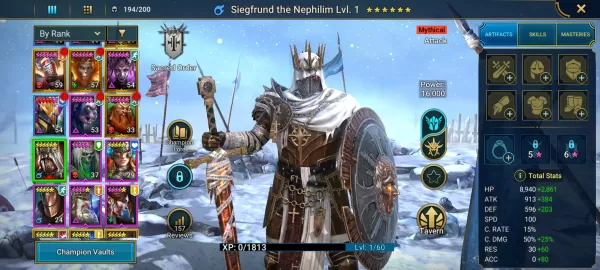 RAID Shadow Legends: Mythical Champions Tier List Revealed
-
 Honkai: Star Rail Update Unveils Penacony Conclusion
-
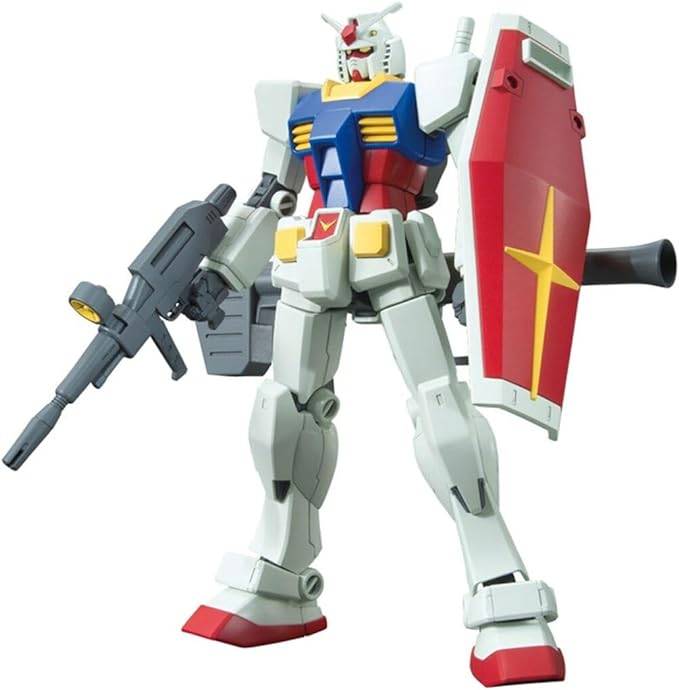 Best Model Kits for Adults in 2025: Ultimate Guide